










Build availability in layers: usual working hours, dated exceptions and occupied-time blocks.
Before you start
- Select the professional whose schedule you are editing.
- Gather the usual week and known closures or special openings.
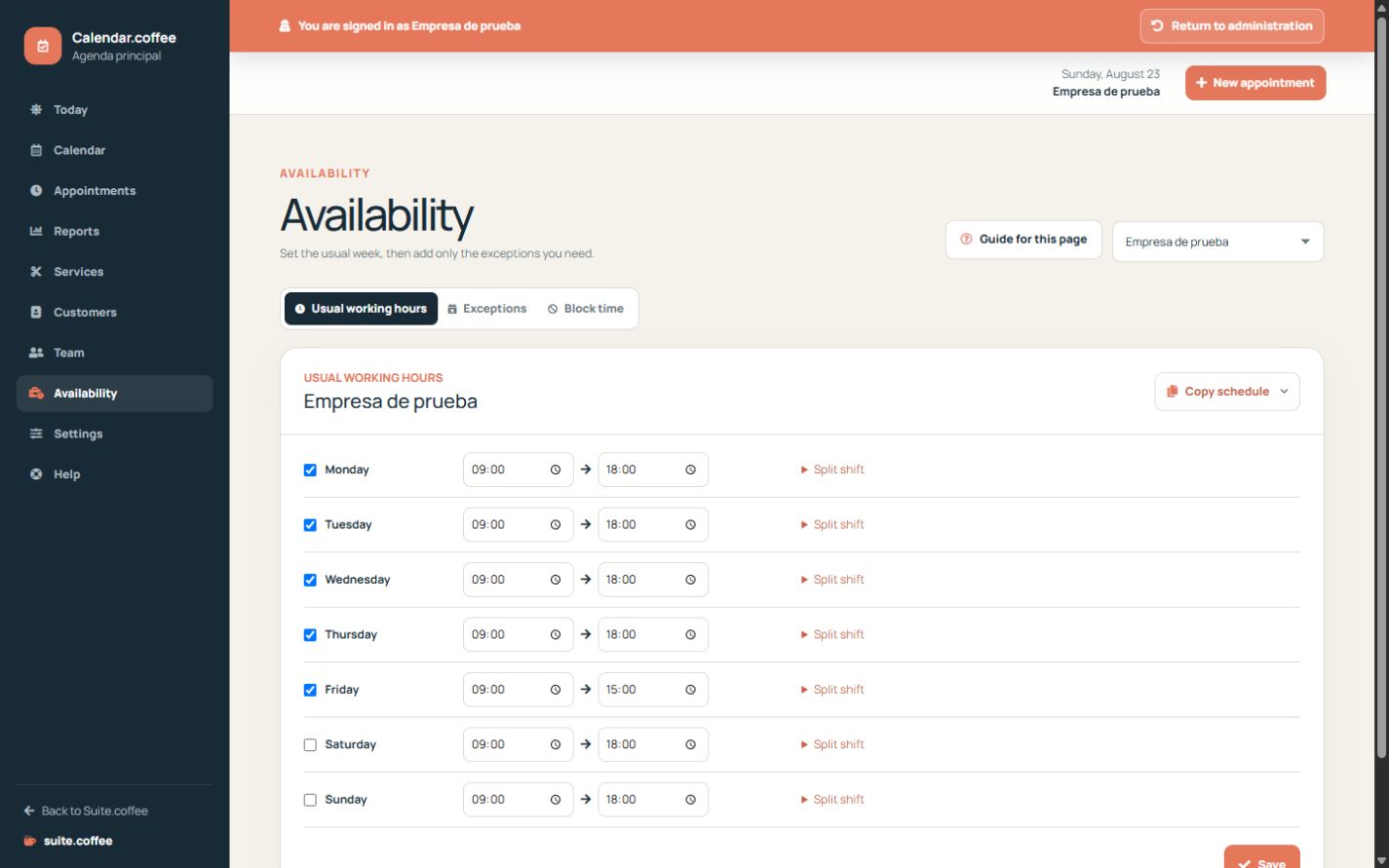
Start with the usual week
Enter the regular working periods for each professional. Use split hours when the day contains two separate working ranges.
Add exceptions for dates
Create a closure or extra availability for a specific date instead of modifying the whole weekly pattern. Calendar applies the dated exception over the usual schedule.
Block occupied time
Use a block for meetings, travel or internal work that must not receive appointments. Do not create a fake customer appointment to reserve time.
Step by step
- Choose a professional in the page header.
- In Usual working hours, set each working day and use split shift when needed.
- Copy Monday only when the same ranges really apply to other days.
- In Exceptions, add a closure or extra opening for a specific date.
- In Block time, reserve meetings, travel or internal work.
- Return to the calendar and verify that the affected slots are no longer offered.
Final check
- Every interval starts before it ends.
- One-off changes use exceptions rather than rewriting the usual week.
- Blocks cover only the necessary professional and time range.
Tip: When an appointment cannot be created, availability is the first place to review together with service assignment and existing bookings.