










Adapt customer messages while preserving the protected Suite layout and the variables that make each email useful.
Before you start
- Confirm the service primary language.
- Prepare wording for confirmation, reminder, rescheduling and cancellation.
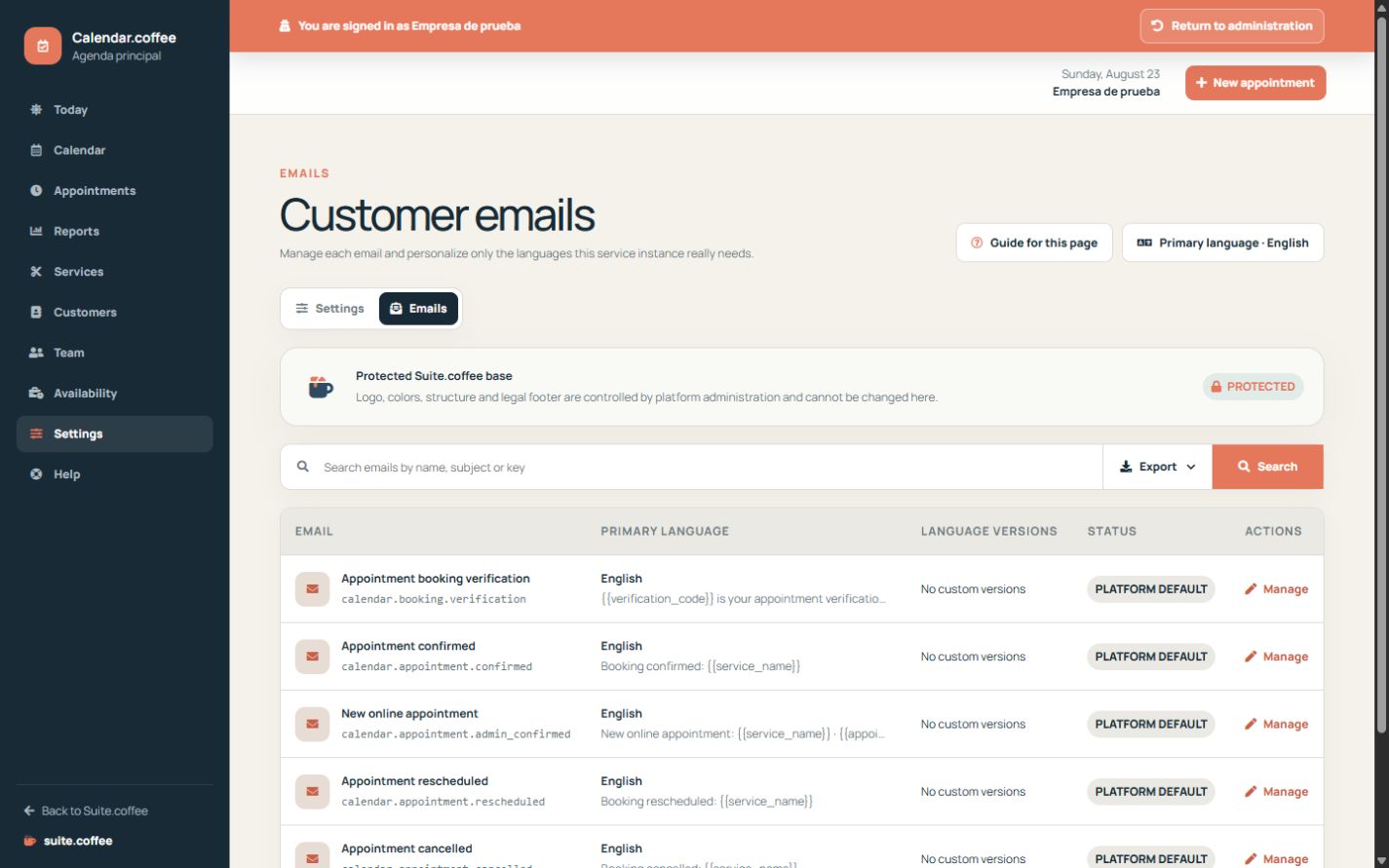
Keep the protected base
Calendar notifications use the common Suite email structure. Customise the sender and message content without removing the required variables.
Work from the primary language
Review the main version first and add only languages your customers need. Empty customised fields inherit the platform content for that language.
Preview the complete message
Check dates, timezone, service, professional and management links before relying on a customised version in production.
Step by step
- Open Emails and locate the notification to customise.
- Open Manage and review sender plus primary-language content.
- Edit the subject and body without removing required variables.
- Add another language only when this service actually communicates in it.
- Leave a field empty to inherit the protected platform version.
- Save and review the final message with realistic appointment data.
Final check
- Service, customer, date, professional and management-link variables remain present where required.
- Primary-language content is complete.
- Optional languages are maintained only when operationally necessary.
Tip: Prefer short, actionable messages. The protected base already supplies brand structure and the legal footer.