










Use Today for immediate work and the calendar views to plan capacity over longer periods.
Before you start
- Make sure each professional has working hours.
- Register blocks and date exceptions before reviewing free capacity.
Start with Today
The overview highlights the next appointment and the work scheduled for the current day. Use it for a quick operational check.
Choose the right view
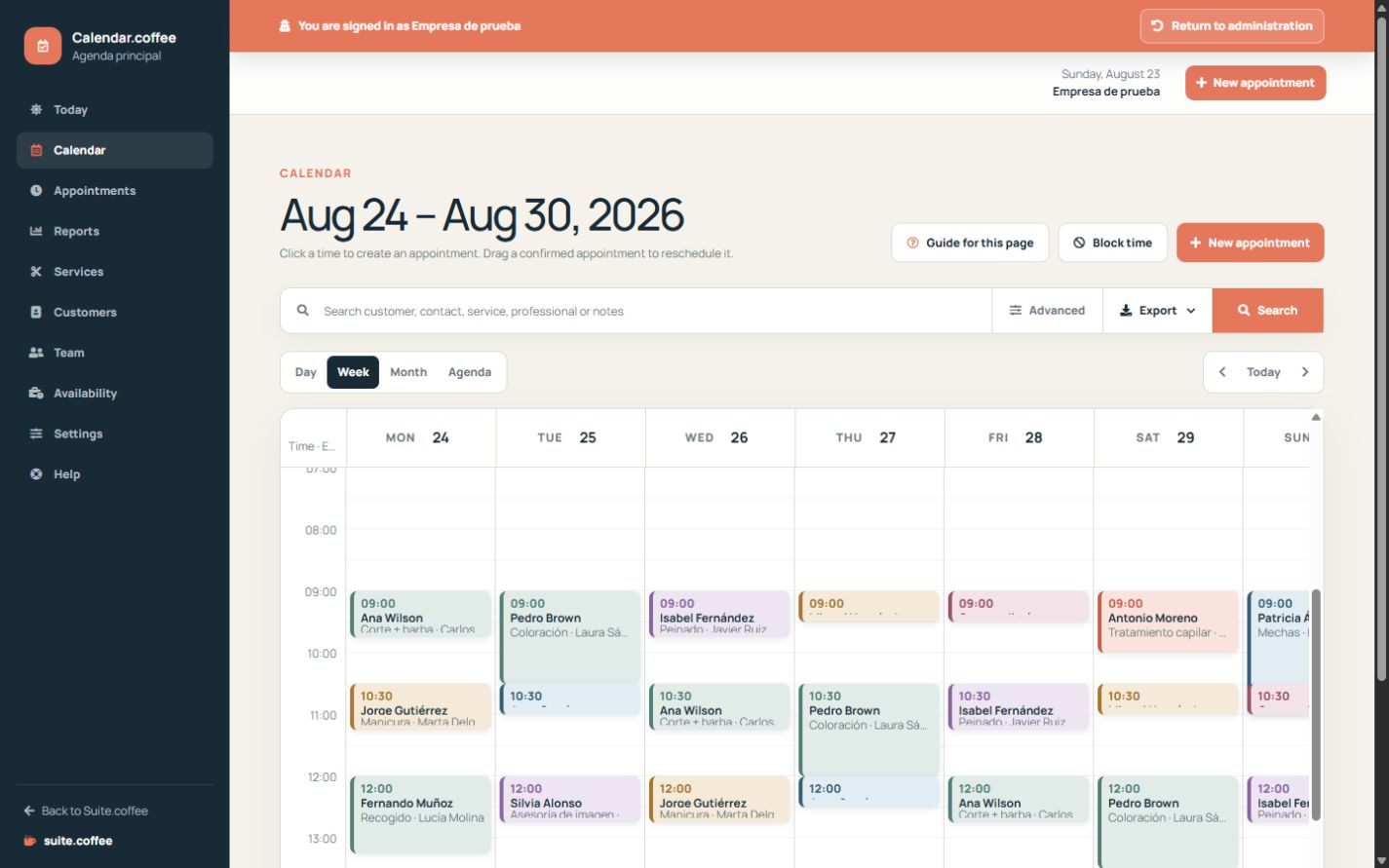
Day and week views show timing in detail; month gives capacity context and Agenda produces a compact chronological list. Filters narrow the view by professional, service, status or search text.
Create or move appointments
Select an available time to begin a new appointment. A confirmed appointment can be dragged to another valid time; Calendar checks professional availability before saving the change.
Step by step
- Open Today to identify the next appointment and outstanding work.
- Switch to Day or Week when exact times matter.
- Use Month to review capacity or Agenda for a compact chronological list.
- Filter by professional, service or status; use search for customer or contact details.
- Select a free time to create an appointment or drag a confirmed appointment to a valid slot.
Final check
- The selected view and date match the period being reviewed.
- Filters are cleared before assuming an appointment is missing.
- A moved appointment appears at the new time and remains assigned correctly.
Tip: Use a time block for meetings or travel. A fake appointment distorts customer history and reports.