










Give every professional the correct access, service assignment and personal availability.
Before you start
- Use the professional real work email.
- Check the plan professional limit before adding another person.
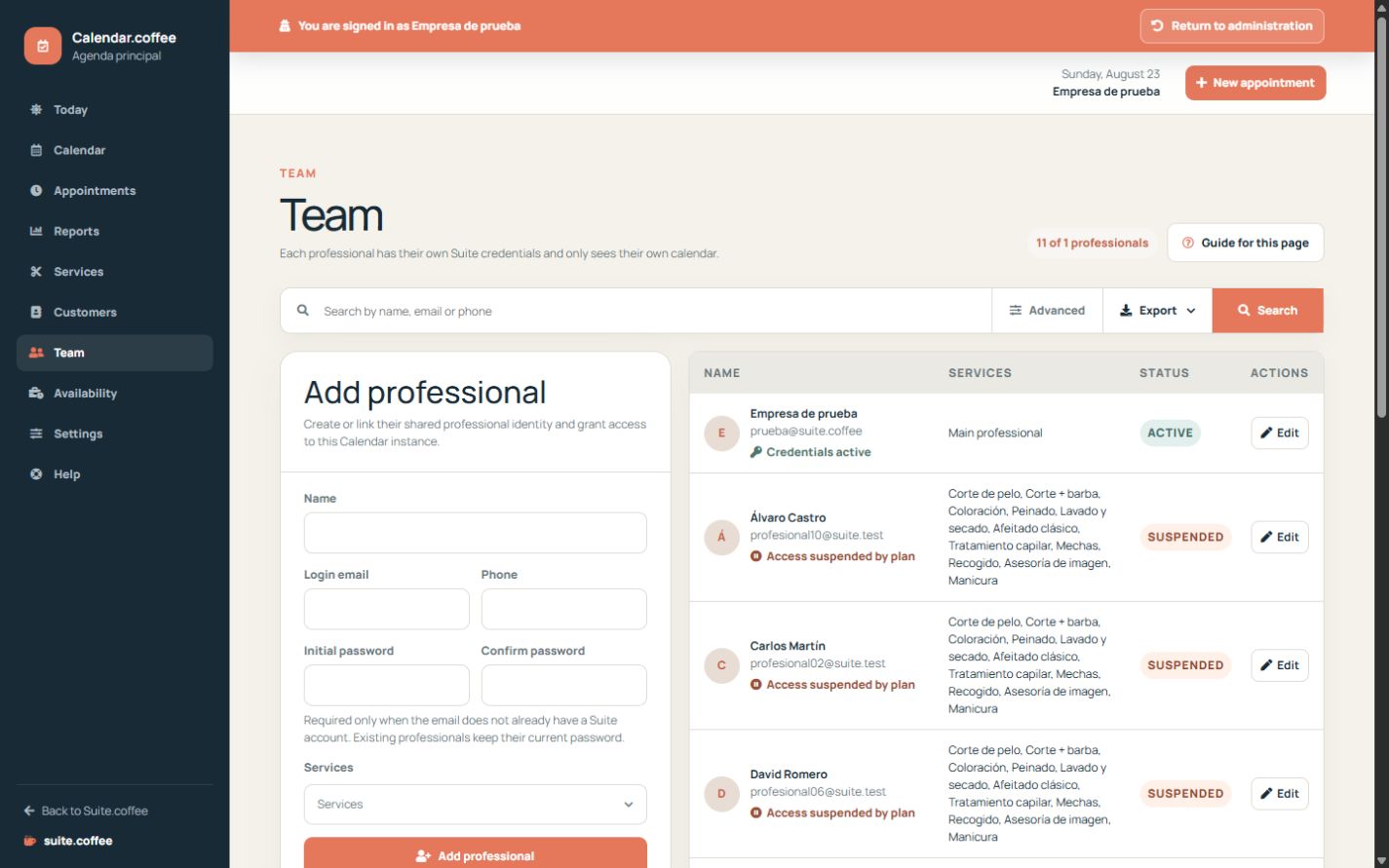
Add or link the professional
Use the person’s real email to create or link their shared professional identity. Existing Suite professionals keep their credentials; a new identity needs an initial password.
Assign services
Select only the services that person can deliver. Their agenda and public availability are calculated from that assignment and their schedule.
Handle plan changes safely
If a professional is suspended by capacity, their data and future appointments remain. Review and reassign affected future appointments before changing the operational rota.
Step by step
- Open Team and search by name, email or phone.
- Add the professional with their real email; set an initial password only for a new Suite identity.
- Select only the services they are qualified to provide.
- Save and define their working hours in Availability.
- Use Sign in as when you need to verify their restricted operational view.
- If capacity suspends a person, review and reassign their future appointments.
Final check
- Access state is active.
- Assigned services match the real role.
- The professional calendar contains only the expected work.
Tip: Do not share manager credentials. Individual access keeps permissions and operational traceability accurate.