










Interpret appointment activity within a clear period and export only the scope needed for the task.
Before you start
- Keep appointment statuses current.
- Decide the question and comparison period before opening the report.
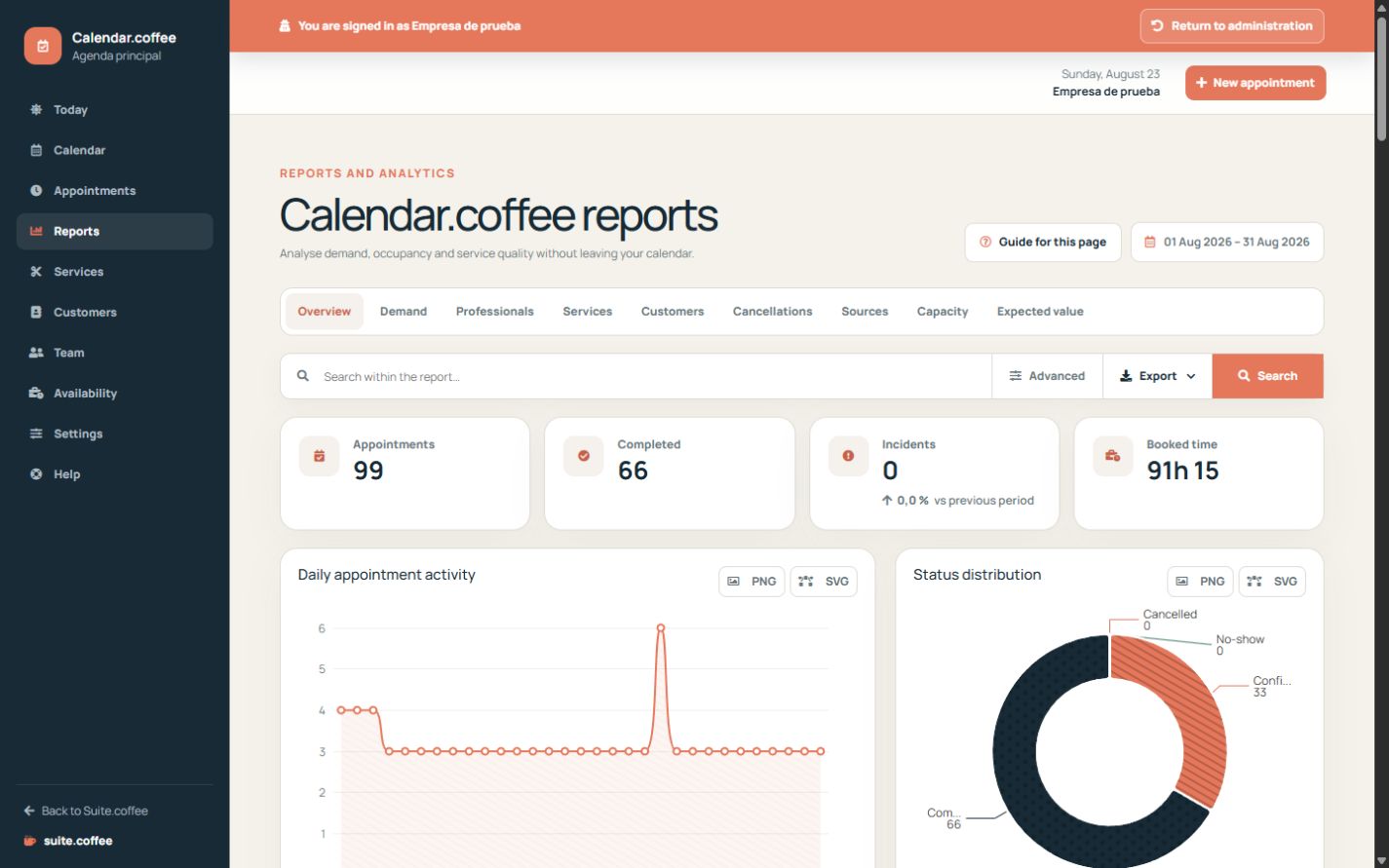
Choose the period first
Use the report period and filters before interpreting totals. Compare confirmed, completed, cancelled and no-show appointments to distinguish workload from delivered service.
Review distribution
Service and professional breakdowns help identify demand and capacity patterns. Read them together with availability rather than treating volume alone as performance.
Export the current scope
List and report exports preserve their supported filters. A downloaded file is a snapshot of that selection and does not update automatically.
Step by step
- Open Reports and choose the relevant report tab.
- Set the period first; use a custom range when presets do not fit.
- Apply professional, service, status or source filters.
- Read headline metrics together with their status distribution.
- Review charts and detailed rows before drawing a conclusion.
- Export the filtered scope or a specific chart for further work.
Final check
- Period and filters are visible and correct.
- Cancelled and no-show appointments are not confused with delivered work.
- The export contains the same scope reviewed on screen.
Tip: Volume alone is not performance. Compare demand with availability and status outcomes.